Data Governance
Part of BI access and data governance
Applying row-level access to sensitive business data
Define and check row-level BI access using business entitlements, representative users and the right platform roles.
Use row-level access when people may use the same report or model but should see different records. Define the entitlement as a business rule, implement it where the data is accessed, and check both records that should appear and records that must not. A filter chosen on a report page is not a security boundary.
Write the rule before configuring the tool
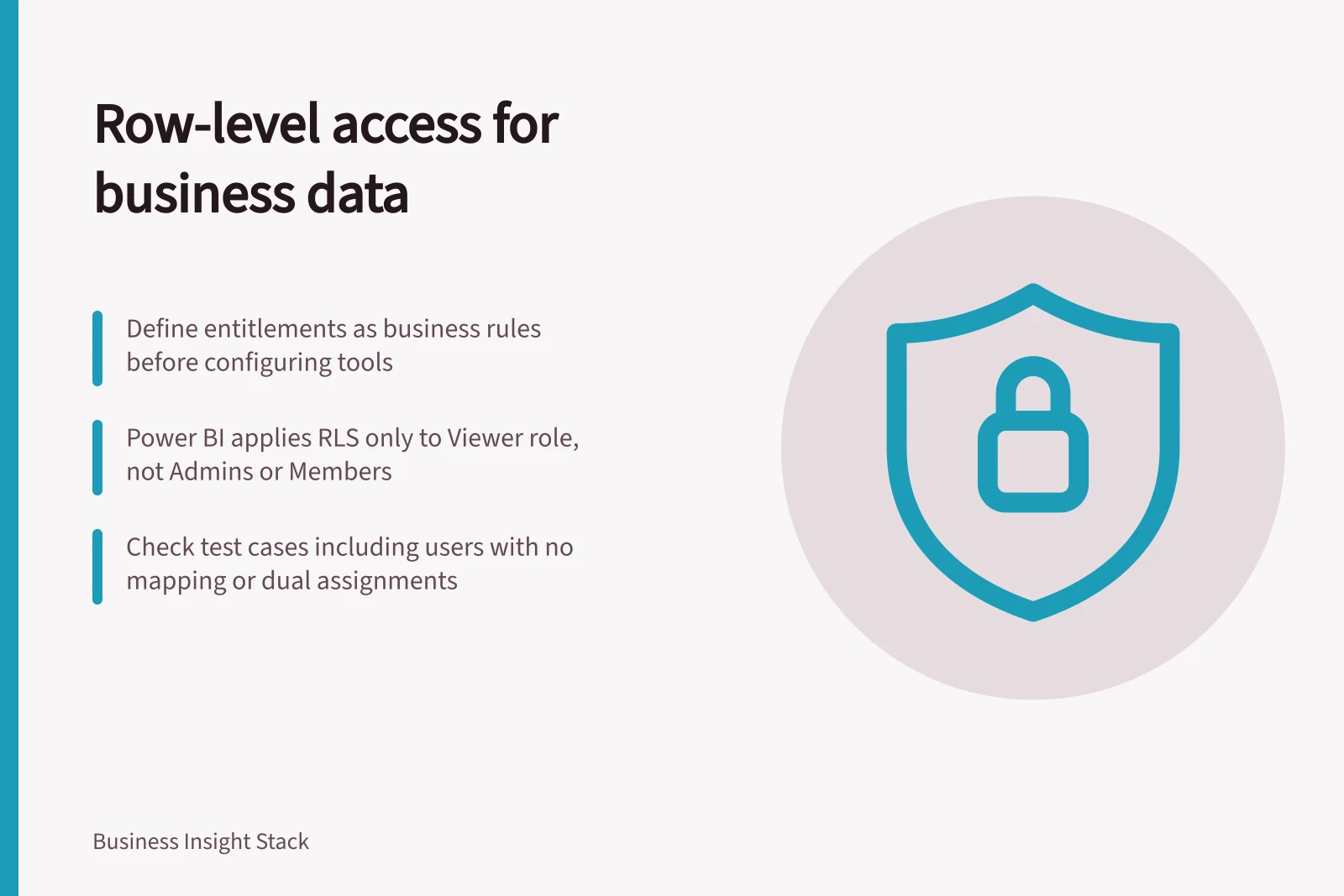
Describe the protected rows, the users and why each group needs access. A regional manager might need records for assigned regions; a central analyst has an approved wider view. State what happens when someone has two assignments, changes team or has no current mapping. Decide who approves exceptions and when they expire.
An entitlement table can hold the user or group, permitted business unit, valid dates, approver and source of the assignment. Keep its business keys consistent with the reporting model. If a region code is missing or a person has no mapping, use a restrictive default and send the issue for review.
Implementing Row-Level Security in Power BI
- Define business entitlementsSpecify which users or groups can access which data based on roles (e.g., regional managers see only their region's data)
- Create an entitlement tableMaintain user, business unit, valid dates, approver, and source of assignment; align with reporting model keys
- Assign roles in Power BI serviceUse Viewer role for standard users; reserve Admin, Member, Contributor roles for trusted personnel
- Apply RLS filters to semantic modelDefine row-level filters in the model using DAX; ensure they enforce access at the data layer
- Test representative casesVerify access for single/multiple assignments, expired mappings, and elevated roles using 'Test as role' and real accounts
Match the rule to the access path
In Power BI, row-level security uses roles and filters on a semantic model. Users are assigned to roles in the service.
Power BI applies RLS to users with the Viewer workspace role. It does not apply RLS to workspace Admins, Members or Contributors. Reserve those elevated roles for people who need them. For imported data, do not assume a source-system role restricts the copy in Power BI; define the access that applies to the imported model.
These details are specific to Power BI. In another platform, identify where the row rule is enforced and how administrator, creator and direct-data access paths work.
Power BI Role-Based Access vs. Row-Level Security
- Role
- Viewer
- RLS Applied?
- Yes – enforced at model level
- Role
- Admin / Member / Contributor
- RLS Applied?
- No – bypasses row-level restrictions
Check representative cases
Prepare cases for a user with one assignment, a user with two, a user whose assignment ended, a user with no mapping and an elevated workspace member. For each, name a record that should appear and one that should not. Check totals, drill paths and detail rows: an overbroad total may disclose information even if a table appears restricted.
Power BI's Test as role feature can provide an initial check. Check effective permissions with representative accounts in the published environment. If users can build reports or export from the model, include those routes.
Key Checks Before Deploying Row-Level Security
- Test user with one assignmentEnsure only correct records appear
- Test user with two assignmentsVerify access is correctly merged or restricted
- Test user with expired assignmentConfirm no access to former data
- Test user with no mappingEnsure restrictive default applies and issue flagged
- Test elevated workspace memberCheck that full dataset is accessible despite RLS
Keep the mapping current
Name the source of assignment changes and when they should reach the entitlement table. Review exceptions and elevated roles when someone moves team or leaves. Keep the approved rule and latest review decision so the owner can distinguish deliberate wider access from a stale grant.
Row-level access restricts rows, not every sensitive field in an allowed row. If an audience should never see a field, use an appropriately limited reporting model or another field-level control. Review exports separately.
Row-Level Security Best Practices Summary
- Source of assignment changes
- HR system or internal directory
- Review frequency for exceptions
- Monthly or upon role change
- Stale grants
- Flagged and reviewed regularly
- Field-level control needed?
- Yes if sensitive field should never be visible